 Guides
Only show guides for your app
GuidesWhat protects your server on its own, what the two tabs of the Firewall page do, how many rules you get, and where to look when a player is blocked.
Every Falix server has a Firewall page in its menu. Its Protection tab shows the filters that guard each port and what they do during an attack. Its Traffic & rules tab shows who's connecting and holds the firewall rules you add yourself, which start switched off.
A DDoS attack floods a server with junk traffic until real players can't get through. On the Protection tab, the Protected ports card lists each of your ports with filters picked for what it runs. Mia's Minecraft server at mia.falixsrv.me gets Minecraft Java filters. Bedrock, Source query, Terraria, BeamMP and QUIC ports have their own sets, and any other port gets connection limits.
Each port starts in Count only mode, which reports what its filters would block and drops nothing.
The card at the top of the tab tells you what your server has.
| The card says | What it means |
|---|---|
| "Every port is filtered for what it runs" | The port filters and your own rules are both on |
| "only the automatic port filters below apply" | Your own rules are off, and the port filters still work |
| Your firewall only, with no mention of port filters | This server has no port filters, lockdown, blocked addresses or country rules |
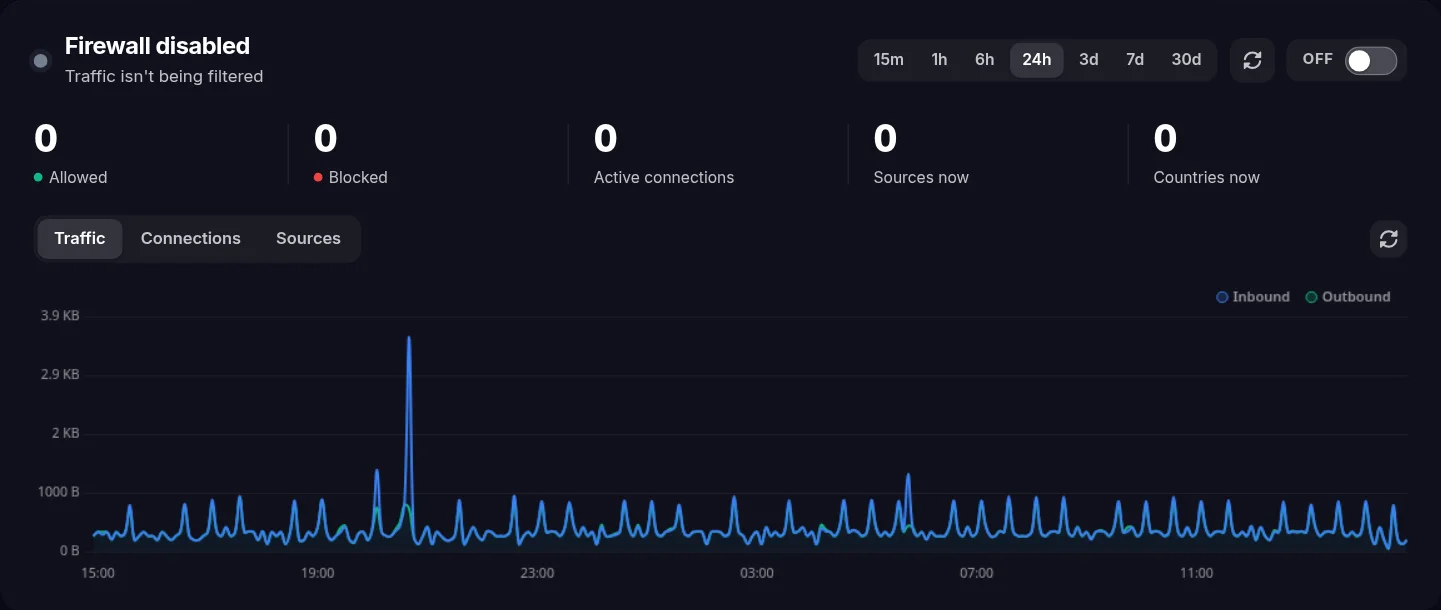
Traffic & rules opens first. It has the firewall switch, counters for allowed and blocked traffic, a chart of up to 30 days, the top sources and countries, and the Rules card.
| On the Protection tab | What it does |
|---|---|
| Protected ports | Opens each port's Activity for the last 24 hours and its Settings |
| Network flood limits | Limits for SYN, ACK and UDP floods, fragments and invalid packets on all ports, off until you turn them on |
| Countries & networks | Blocks up to 64 countries and 64 networks on your game ports, or allows only those |
| Blocked addresses | Blocks an IP address or a range on every port for 1 hour, 24 hours, 7 days or 30 days |
| Lock down… | Lets in only players who joined in the last 7 days, for 15 minutes, 1 hour or 6 hours. The button shows when the firewall is on or an attack is running |
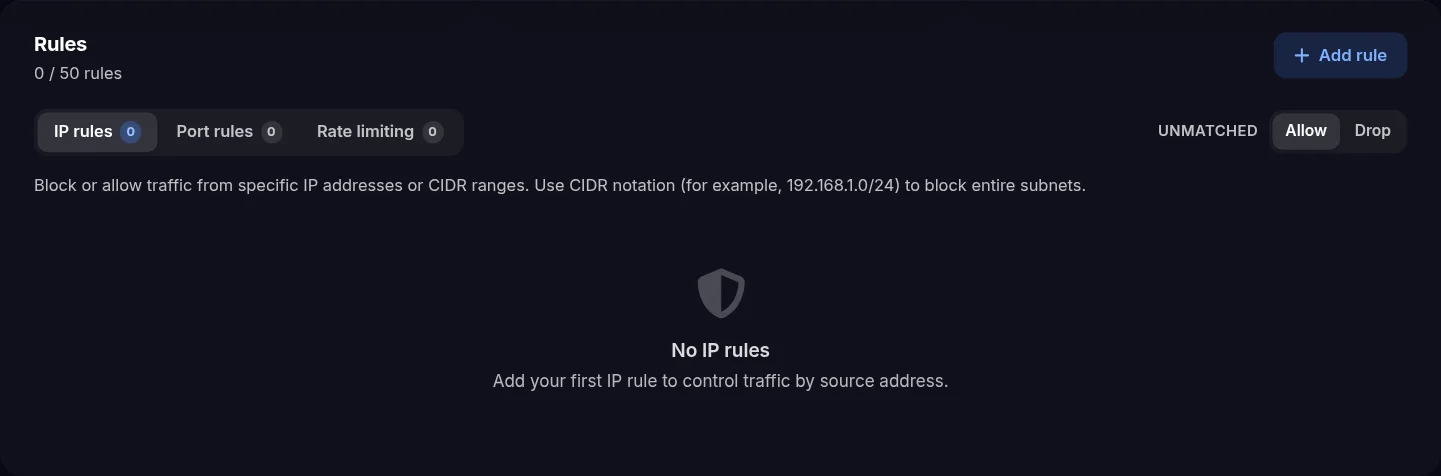
A server holds up to 50 rules. On the Rules card, choose a kind and press Add rule.
| Kind | What it does |
|---|---|
| IP rules | Blocks or allows one IP address or a range, such as 203.0.113.0/24 |
| Port rules | Blocks or allows one of your server's ports, on TCP, UDP or both |
| Rate limiting | Limits incoming connections per second, with a burst size. Connections over the limit are dropped |
IP and port rules take Allow, Drop or Reject. You drag rules to set their priority, and Unmatched decides what happens to traffic that matches none of them. Rules only apply while the firewall is switched on.
Free and Premium servers get the same Firewall page, with both tabs and the same limits. Premium also lists DDoS protection among what's included when you create a server, and names it for most locations, such as OVH Game DDoS Protection in Gravelines, France. The free plan doesn't list it.
Open Protection, click the port and read Activity. It gives a reason for everything blocked in the last 24 hours, such as "Your rules", "Blocked address" or "Lockdown".
| What you see | Usual cause | Where you fix it |
|---|---|---|
| Nobody can join since you changed the firewall | Unmatched is on Drop and no rule allows players | Set Unmatched back to Allow |
| Only Mia's friend Leo can't join | An IP rule or a blocked address matches him. Falix staff and auto-mitigation block addresses too | Delete the rule or press Unblock |
| Players from one country or on a VPN can't join | Your Countries & networks list covers them | Edit the list |
| Only new players are turned away | A lockdown is running | Press End lockdown |
| Activity names a port check, such as "New connections" or "IP-address joins" | That check is refusing them | Switch the check off in the port's Settings |
During an attack on Mia's server, the card at the top of Protection reads "Stopping an attack on Minecraft Java" and counts the packets blocked and the players passing. If too much still gets through, turn on Network flood limits, or use Lock down…, which hides your server from server lists until it ends. If the card shows no attack and the flood continues, set the port's Mode to Enforce. When (and how) to contact support covers what to send after that.